|
<< Contents
<< Data Panes
<< Numeric
|
| |
|
|
| |
|
| |
|
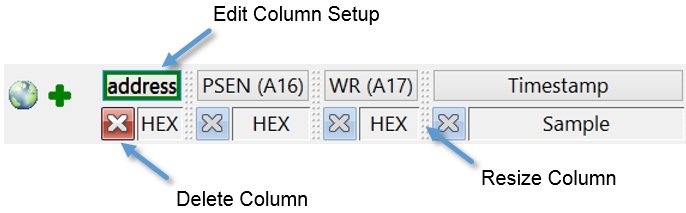
The Column Edit Area is at the top of the Numeric view. The Column Edit Area is used to configure the columns.
|
| |
|
|
| |

|
Edit All Columns
|
|
| |
|
Select Channel Groups
|
| |
|
Select the channel groups displayed in the pane. |
| |
|
All: Set Data View
|
| |
|
Set Trace or Reference data view in all columns.
|
| |
|
All: Set Default Column Width
|
| |
|
Edit the default column width and resets all columns to that width.
|
| |
|
All: Reset Column Widths
|
| |
|
Reset all columns to the default width.
|
| |

|
Add New Column
|
|
| |
|
Adds a new column to the pane and shows the Setup Area.
|
| |
|
|
| |
|
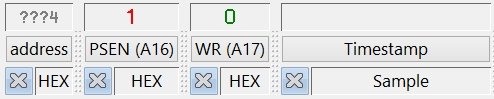
When the activity indicators are enabled, the channel activity is visible at the top of the Column Edit Area....
|
| |
 |
| |
|
Column Buttons
|
| |
|
Each numeric column has a setup button.
|
| |
|
Click on a column button display the Setup Area.
|
| |
|
|
| |
 |
| |
|
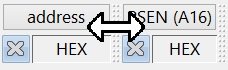
Move the mouse over the space between columns. When the mouse cursor changes to the horizontal resize icon, click and hold the mouse button. Drag the column width horizontally and release the mouse button at the desired width.
|
| |
|
|
| |
|
Click and hold the left mouse button over a setup button until the column is "lifted". Drag the column horizontally in the setup area. Drop the column on the new location.
|
| |
|
Copyright and trademark information
|

|